You want to go paperless.
Scan contracts, letters, and bank statements, then find them instantly with full-text search.

Paper in. PDF out.
ScanKing is the scanning software for document scanners from almost all manufacturers: load the stack, scan, and get a searchable PDF or editable Word file in the correct folder – all from one interface, regardless of which device is on your desk.
incl. VAT · One-time purchase · one license for up to 2 devices
macOS 15 Sequoia or later · all requirements
Most manufacturers bundle their own scanning software – and it only works with their own devices. ScanKing supports scanners from many brands, via USB or network, and comes with built-in drivers. I was often frustrated with the user experience of proprietary software. That's why ScanKing is built the way scanning should be: entire stacks in a single run, deskewed pages, long receipts, text recognition, and a filing workflow that sends every PDF straight where it belongs.
Scan contracts, letters, and bank statements, then find them instantly with full-text search.
Invoices and receipts for taxes and accounting: feed the whole stack, get searchable PDFs saved directly to the right folders.
Even if the manufacturer no longer provides software updates: many older devices keep running on your new Mac with ScanKing, instead of ending up in the trash.
ScanKing has its own device profile for the S1500 and can read information that previously only Fujitsu’s software could.
Only the printed price list left, and prices have changed? Scan, save as Word, adjust prices, done: ScanKing reconstructs the paper as a Word document – as close to the original as possible, yet fully editable. When saving, simply choose "Word" instead of "PDF".
The price list from the image, as ScanKing saves it as a Word file. Open it in Word, Pages, or LibreOffice and adjust the prices. The nursery is fictional.
From a stack of paper straight to a filed PDF.
Drivers for many USB document scanners are built right into the app: Fujitsu fi and ScanSnap, Canon imageFORMULA DR, Kodak, Avision, Epson, Plustek, and more. No Homebrew, nothing extra to install.
ScanKing discovers most current devices from Brother, Canon, Epson, and HP via the macOS scanner service, plus any device with a manufacturer driver. One interface for all of them.
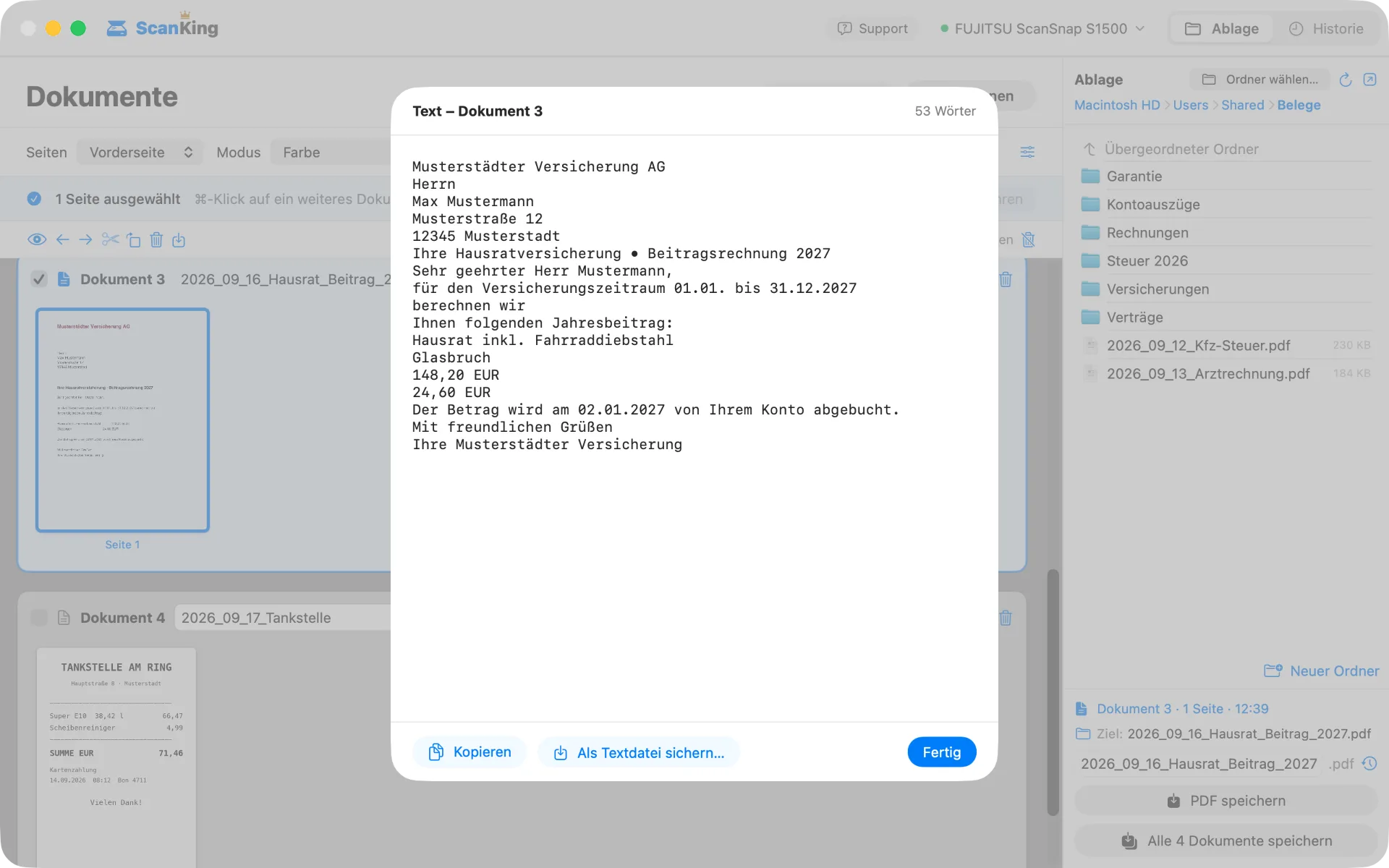
OCR embeds text invisibly into the PDF: You can find every document via full-text search and copy text from it. ScanKing also displays the recognized text directly – for reading, copying, or saving as a text file. Everything runs on your Mac; nothing goes to the cloud.
Instead of a PDF, a Word file that looks like the paper: text, tables, logos, and images, all fully editable.
ScanKing detects paper boundaries, straightens crooked pages, and trims borders, even on narrow receipts. Empty pages, such as blank backs, can be automatically skipped.
Receipts up to 876 mm long; the scanner only captures the actual length (on supported devices).
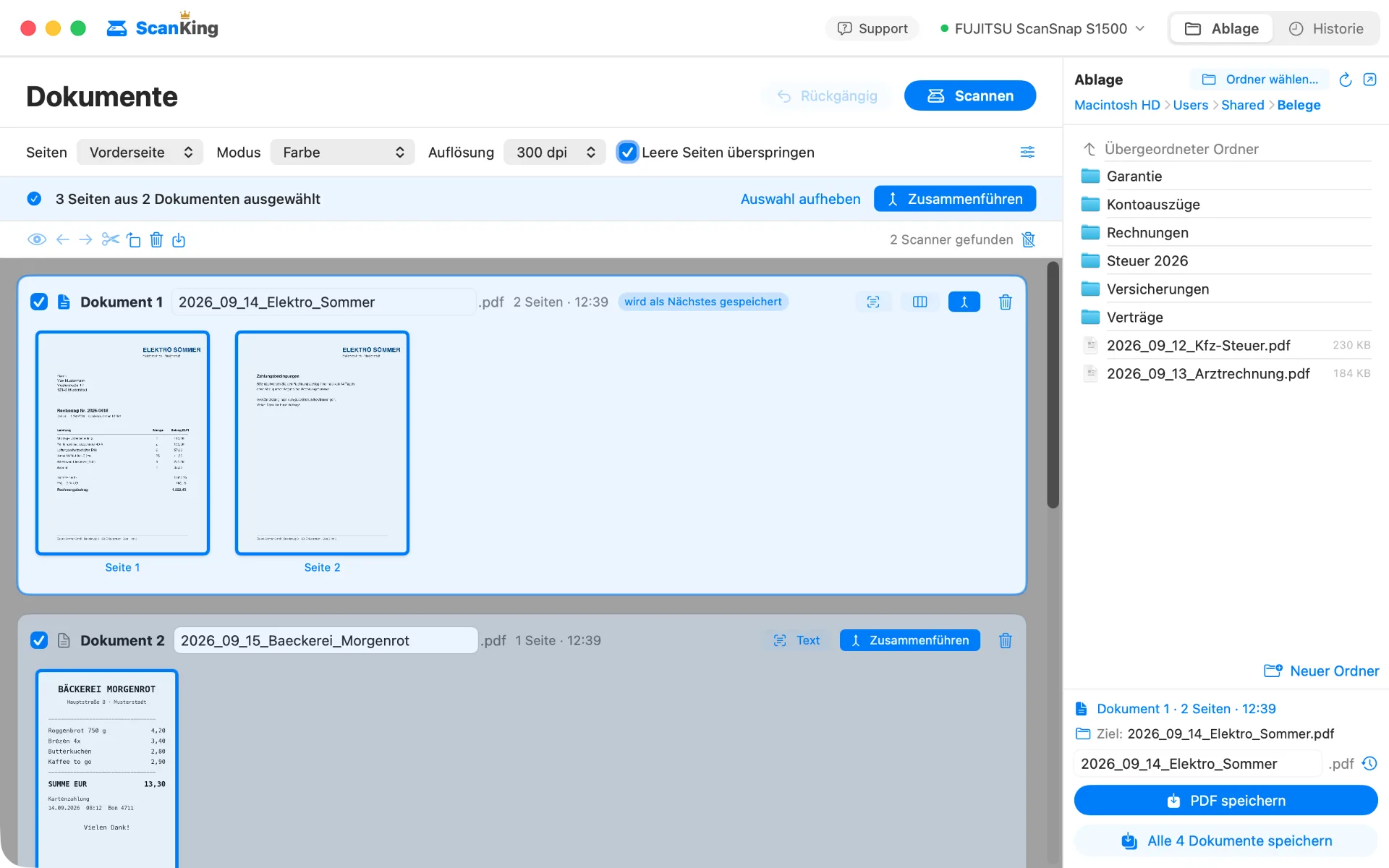
Rotate, reorder, and delete pages; split batches, select multiple documents, and merge them into one. Every step can be undone.
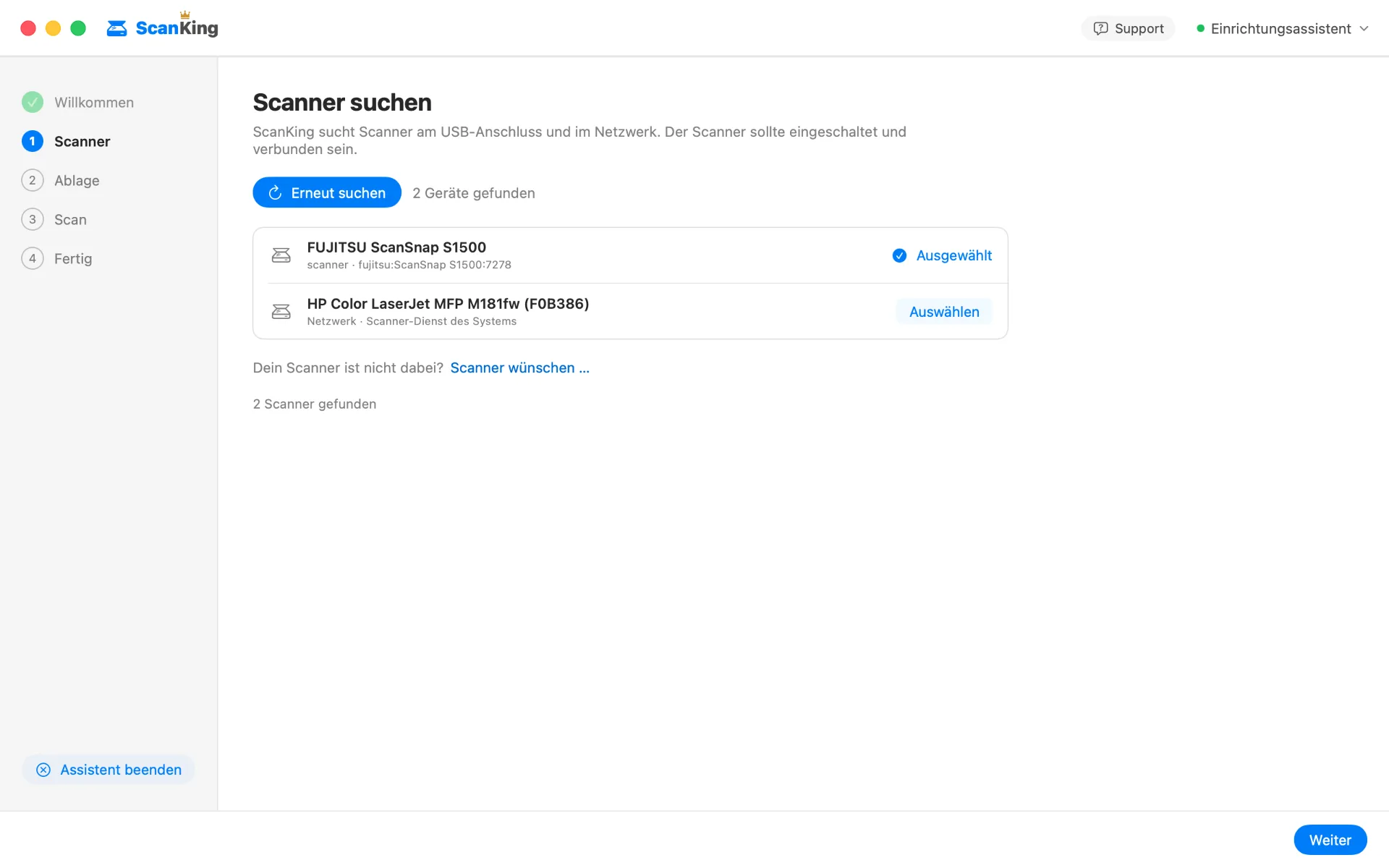
Connect it via USB or turn it on in your network; the setup assistant will find it. Network scanners show up after a few seconds.
Choose a folder. Pages, color, and resolution are set directly under “Scan” and can be changed before each scan; ScanKing only shows what your device can do.
Load your pages and click “Scan” (⇧⌘S) – or, with many USB scanners, simply press the button on the device. ScanKing scans and brings its window to the front.
Assign file names directly to the document or use the timestamp, then save – individually or all at once.
Scan all receipts at once and split them into individual documents afterward – or merge what belongs together.
The library is on the right side of the window. You choose the folder and assign file names directly to each document – or use the suggested timestamp.
You can use ScanKing without a license for as long as you like: scan, view and edit to your heart’s content. Only saved PDFs will have a watermark.
K·I·N·G — Keep it neat & good.
Buy ScanKing · €19.99